

For many years, ES File Explorer was linked with “power user” tasks on Android. People used it to sort files, open many formats, and connect to servers. Since more users now switch between Android and Apple devices, interest in ES File Explorer for iOS has grown a lot.
Because iOS works in a tighter system, the big question is simple. Does this iOS version keep the spirit of the older Android tool? Or does it only carry the name on a more limited platform? Even so, the app still aims to help people who need more than Apple’s basic file tools.
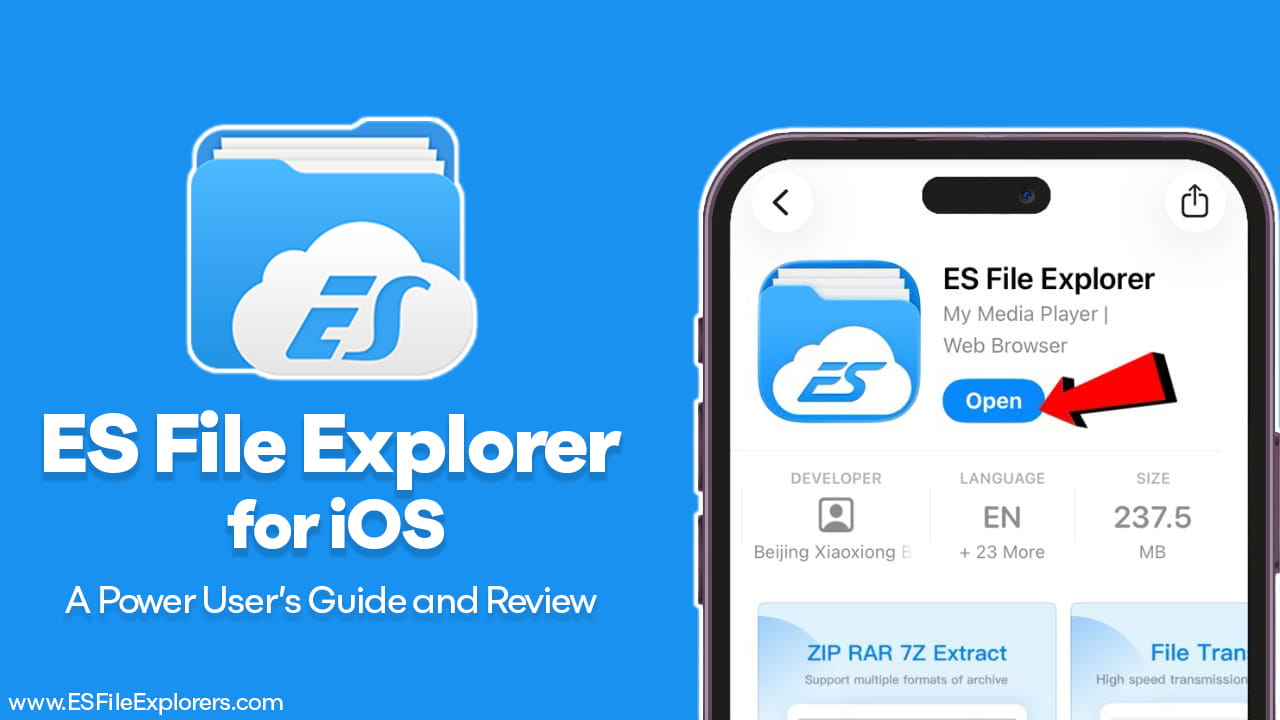
Is ES File Explorer Available on iOS?
Yes, ES File Explorer for iOS is available on the Apple App Store. The developer lists as Beijing Xiaoxiong Bowang Technology. Apple’s security rules force apps to work inside a “sandbox.” So, the iOS version cannot do the deep system access that older Android versions allowed.
Still, the app does not feel empty. Instead, it focuses on the parts of file work that iOS allows. As a result, it can feel stronger than the default Apple Files app for people who manage many file types, use network storage, or move data between devices often.
Key Features of the iOS Version
The iOS version includes more than basic copy and paste actions. Many tools target busy users who handle work files, media files, and server folders. Also, several features focus on speed, sorting, and connecting to other systems.
File Management and Organization
At its core, the app handles common file actions well. For example, it can create folders, rename items, and move groups of files at once. Batch actions matter because they save time on large collections.
It also supports many archive types. ZIP support is common, yet support for formats like 7z and RAR helps when files come from different systems. In addition, iPad users get useful layout support. Split View and drag-and-drop make it easier to move content between apps. Therefore, the app can fit better into an iPad workflow than some simpler file apps.
Network and Cloud Integration
This part often matters most for advanced users. Many people store files on a NAS, a home server, or an office server. So, a file manager needs strong network support. ES File Explorer for iOS includes several options for this kind of work.
-
SMB, FTP, and WebDAV: These protocols help connect to shared folders, servers, and network drives. With them, the app can reach files stored outside the iPhone or iPad.
-
WiFi Transfer: A “Face-to-Face” style transfer feature helps move files between a phone and a computer without a cable. This can be useful when quick sharing is needed.
-
Cloud Backup: Incremental backup options can help save photos or albums to supported services or personal servers. That means new items can be added without re-uploading everything each time.
Even though iOS limits system access, network support can still make the app feel powerful. In many cases, connecting to outside storage matters more than touching system folders.
Built-in Productivity Tools
Many file apps only move files around. However, ES File Explorer for iOS includes tools that try to reduce the need to switch apps. That can help in real work situations where viewing and editing matter.
A built-in code editor supports many formats, including a wide list of file types. This can help when checking config files, scripts, or text data. A PDF tool is also included. It supports actions like highlighting and adding signatures, which may help with documents and forms.
There is also a reading tool aimed at book-style files. EPUB and TXT support can matter for people who keep documents, manuals, or long text files on their device. So, the app tries to act like a small work hub instead of only a file mover.
Performance and User Experience
In testing on iOS 26, the app has been stable in normal use. Recent bug fixes improved problem areas, including crashes related to photo import in earlier builds. That stability is important because file work often involves large transfers and many items.
The interface looks clean and supports Dark Mode. Navigation feels direct, and common actions are easy to find. Still, many advanced tools sit behind paid upgrades. For example, the full PDF editing set and ad removal may require the ES Pro subscription or a lifetime VIP purchase. Therefore, the free version can feel limited for users who need those higher tools every day.
Ads may also appear in the free version. That can interrupt the flow during repeated file actions. Even so, basic file handling and many network features can still be useful without payment, depending on the exact needs.
Security and Privacy Considerations
Privacy matters more when a file manager touches personal documents and photos. According to the App Store privacy labels, the developer may collect identifiers and usage data. This kind of collection is common in many free apps, yet it still deserves attention.
Another point is permissions. The app may request location access for certain WiFi transfer features. Some transfer tools use nearby network discovery, which can trigger such requests. Even so, location access does not have to stay on all the time. iOS Settings can control this, so permissions can be limited when not needed. As a result, users can reduce data exposure by turning off access that does not match their workflow.
Also, it helps to think about what the app connects to. When adding server logins like SMB or FTP, using strong passwords and trusted networks is important. That is true for any network file tool, not only this one.
Pros and Cons
Pros
- Supports SMB, FTP, and WebDAV for network storage access
- Built-in code editor and PDF tools reduce app switching
- Fast WiFi file transfer between devices without cables
- Strong iPad support with Split View and drag-and-drop
- Handles many archive formats like ZIP, 7z, and RAR
Cons
- Pro features often require a subscription or a lifetime purchase
- Some features may request location access for WiFi transfer
- iOS sandbox limits access to system-level folders and files
- The free version may show ads during use
Top Alternatives for iOS Users
Sometimes the best choice depends on the main task. If ES File Explorer for iOS does not match a specific workflow, other apps may fit better.
Documents by Readdle
Documents is often treated as a strong all-in-one file app on iOS. It usually works well for media playback and general file handling. Also, it can suit users who want a smoother “media plus files” experience.
FE File Explorer
FE File Explorer often targets network storage users. It can be a good option for people who mainly use NAS devices and shared folders. So, it may feel more focused on network work than on built-in editing tools.
Apple Files
Apple Files works well for basic use, especially with iCloud Drive. It also fits users who do not need many extra features. However, it may feel limited for people who want deeper network protocol support or extra editing tools inside the file app.
Final Words
ES File Explorer for iOS works best for users who find Apple Files too limited. It cannot break through Apple’s core security model, so it cannot offer root-style system access. Yet, it still brings many useful tools into one place.
Network support like SMB, FTP, and WebDAV helps connect to servers and shared storage. Built-in editing tools, readers, and transfer features add real value for people who manage many file types. At the same time, paid locks and ads can shape the experience, especially for those who want the full tool set.
Overall, ES File Explorer for iOS remains a strong option for users who want a more feature-rich file manager on iPhone or iPad, mainly for network access, file sorting, and light editing in one app.